
Open the tool
The Color Chart tool lives here:
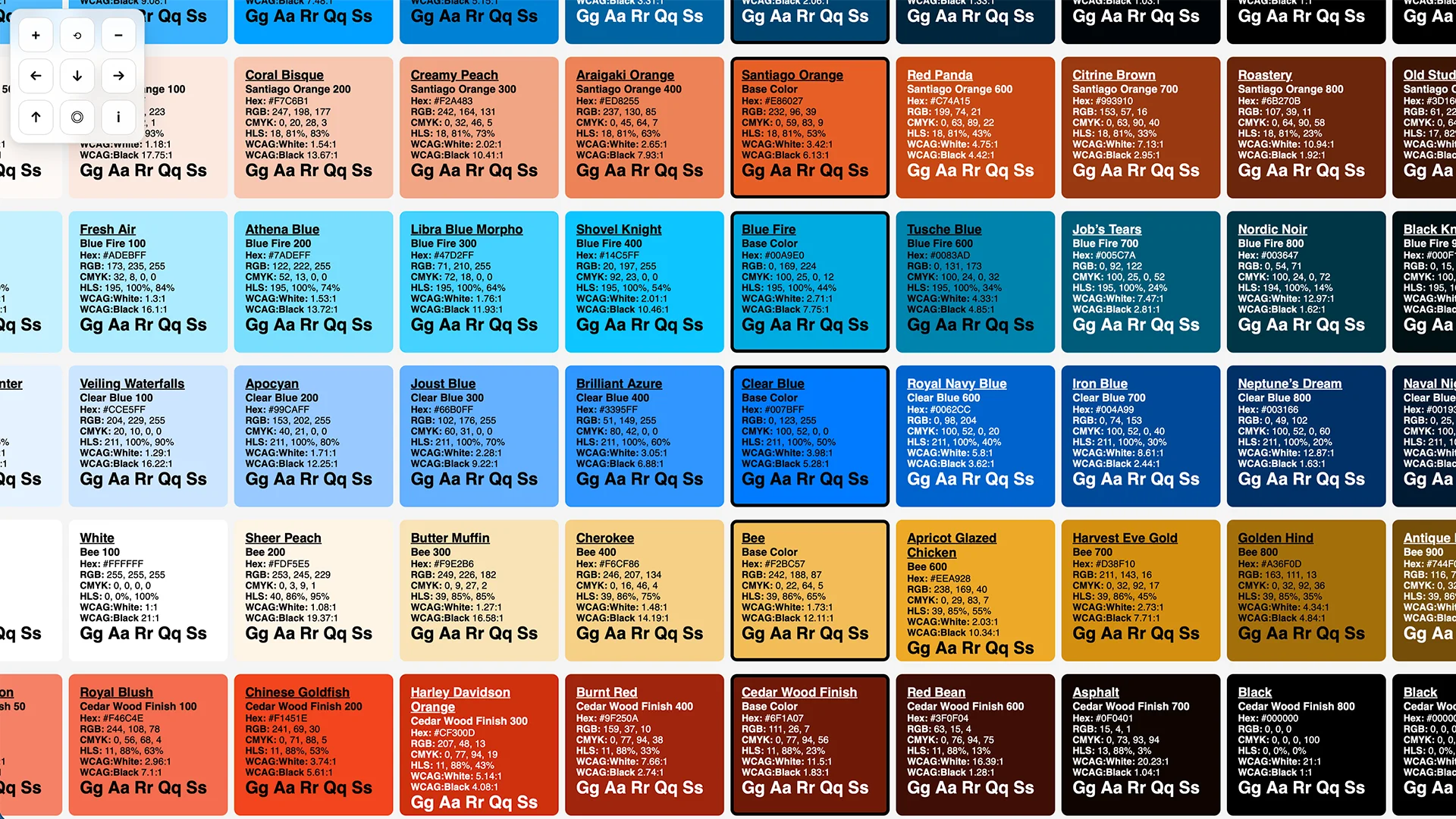
Think of it like a map: the screen is your viewport, and the chart is a larger world behind it.
What the tool does
Given one or more base colors, the tool generates a grid of shades and supporting metadata (RGB/HSL/CMYK and contrast information) so you can evaluate a palette as a system, not as a collection of isolated swatches. The workbench adds decision tools for accessibility, export, semantic roles, theme suggestions, palette comparisons, color-vision simulation, dual-mode UI previews, and manual image sampling. In browsers or browser agents that support the draft WebMCP API, the page also registers palette tools through document.modelContext.
Pan and zoom (three ways)
1) On-screen controls
The tool overlays a small control pad in the upper-left:
+zoom in−zoom out⟲reset view← ↑ → ↓pan◎center the chart in the viewportitoggle the status readout (zoom % and x/y offset)
2) Mouse / trackpad
- Drag anywhere on the chart background to pan.
- Use the mouse wheel / trackpad scroll to zoom toward the pointer location.
3) Keyboard shortcuts
- Arrow keys: pan
- Shift + arrow keys: pan faster
+/=: zoom in-/_: zoom out0: reset
Feeding the tool your own palette (URL parameter)
The tool accepts a c query parameter so you can generate a chart from a specific palette without editing the file.
Examples
Use the built-in “teds” palette:
https://tedt.org/tools/color-chart.html?c=teds
Provide a comma-separated list of hex colors:
https://tedt.org/tools/color-chart.html?c=%2300a9e0,%23101820,%23fed141
Notes:
- You can include
#or omit it (the tool will add it when it’s clearly a hex value). - 3-digit hex values (like
#0af) are expanded to 6-digit (#00aaff). - 8-digit hex values (
#RRGGBBAA) are accepted; how the alpha channel affects the rendered swatch depends on browser + color parsing.
Extracting a palette from a website or image
The tool now has an Extract from source panel. You can enter a website or image URL, upload an image, or paste a screenshot.
The static version is intentionally honest about browser security:
- Direct URL analysis works when the target allows browser access to its HTML, CSS, manifest, icons, or image pixels.
- Direct image URL analysis works when the image can be fetched and read by the browser.
- Uploading or pasting a screenshot works for any site because the pixels are local to your browser.
- There is no backend proxy. If a site blocks browser access, the tool leaves your current palette intact and asks you to upload or paste a screenshot instead.
Analysis workbench
The workbench turns the chart from a viewer into a decision surface:
- Contrast Matrix: checks generated shade pairings and labels AA, AAA, large-text, or failing combinations.
- Tokens: exports the current shade system as CSS variables, JSON tokens, SCSS maps, Tailwind colors, or Bootstrap-oriented variables.
- Roles: maps shades to semantic UI roles. Role dropdowns show a color patch, color name, RGB value, and tint value; the panel also exports role tokens. Brand/status/focus roles are shared, while background, surface, text, and border are set separately for light and dark modes.
- Audit: flags contrast, near-duplicate colors, missing neutrals, and other palette risks.
- Themes: proposes light and dark theme pairings from the semantic roles.
- Compare: compares another palette against the active palette and reports nearest matches.
- Vision: approximates common color-vision simulations and grayscale views.
- Preview: renders common UI pieces in both Light Mode and Dark Mode using the semantic roles.
- Image Picker: lets you sample colors manually from an uploaded, pasted, or dropped image.
WebMCP tools
The page registers WebMCP tools when the browser exposes the draft document.modelContext.registerTool() API. These tools let a browser agent inspect or update the same palette state the UI uses.
The registered tools cover:
- getting the current palette, generated shades, semantic roles, and share URL
- setting the active palette
- generating shade records for supplied colors
- returning color metadata
- calculating contrast
- normalizing and deduplicating palettes
- exporting tokens
- comparing palettes
- auditing the active palette
- extracting colors from CSS text
- building share URLs
- assigning semantic roles
If the browser does not support WebMCP, the page continues to behave normally; the tools simply are not registered.
A small (honest) note about network calls
Some metadata (like human-friendly color names) may rely on an external lookup. If you’re offline, or if a third-party service is slow, the chart still renders — but names may be missing or delayed.
Why this matters (and why it’s worth documenting)
When a chart can’t move, you end up moving around it.
When a chart can move, you stop fighting the tool.
And once you stop fighting the tool, you can do the real work: noticing what the palette is actually saying.
The goal is simple: a palette should be easy to inspect, but also easy to decide with.